How to brighten a dark photo
By Sekora Studios · Updated
Brighten a dark photo in small steps while checking faces, shadows and bright areas. A lighter image can reveal visible detail, but it cannot restore information missing from the source.
Steps
- Open Brighten Image and choose the photo.
- Adjust Brightness gradually while watching the preview.
- Check light areas such as a window, sky or white shirt. Reduce the adjustment if they lose visible detail.
- Finish the edit and download the result. Keep the original to compare or try another adjustment.
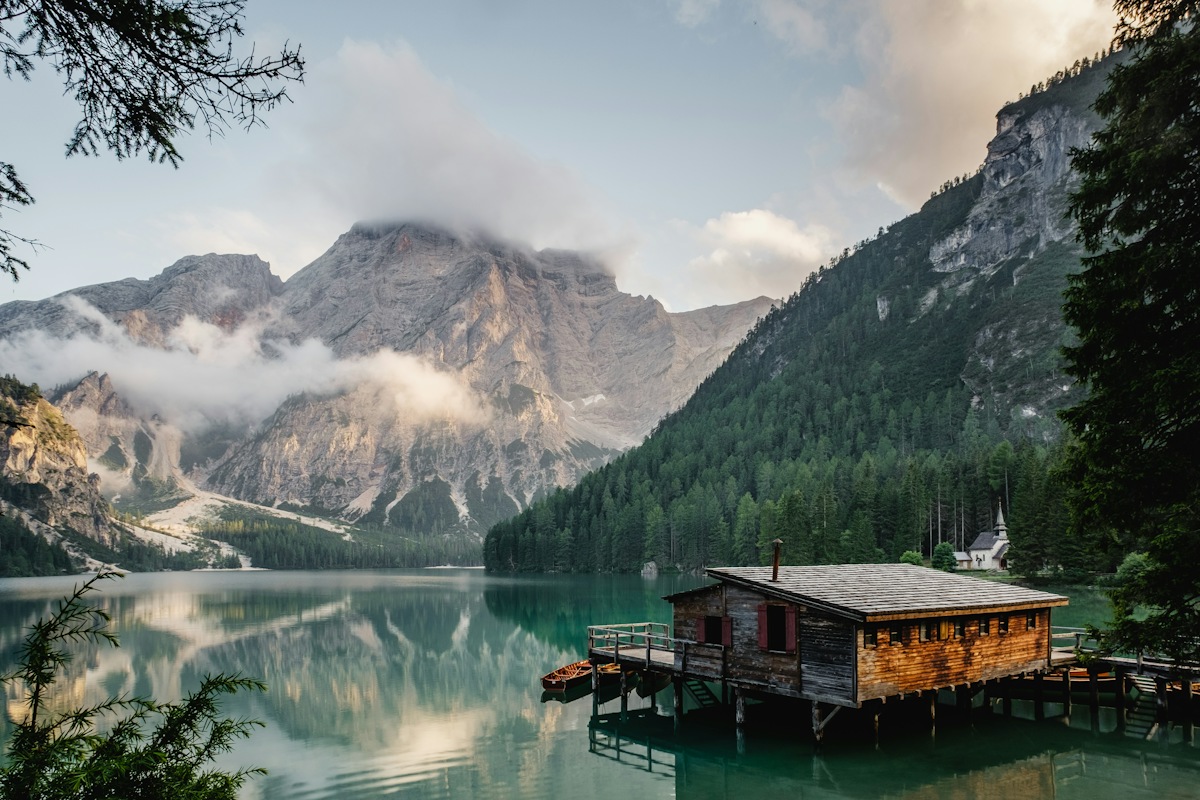
Original
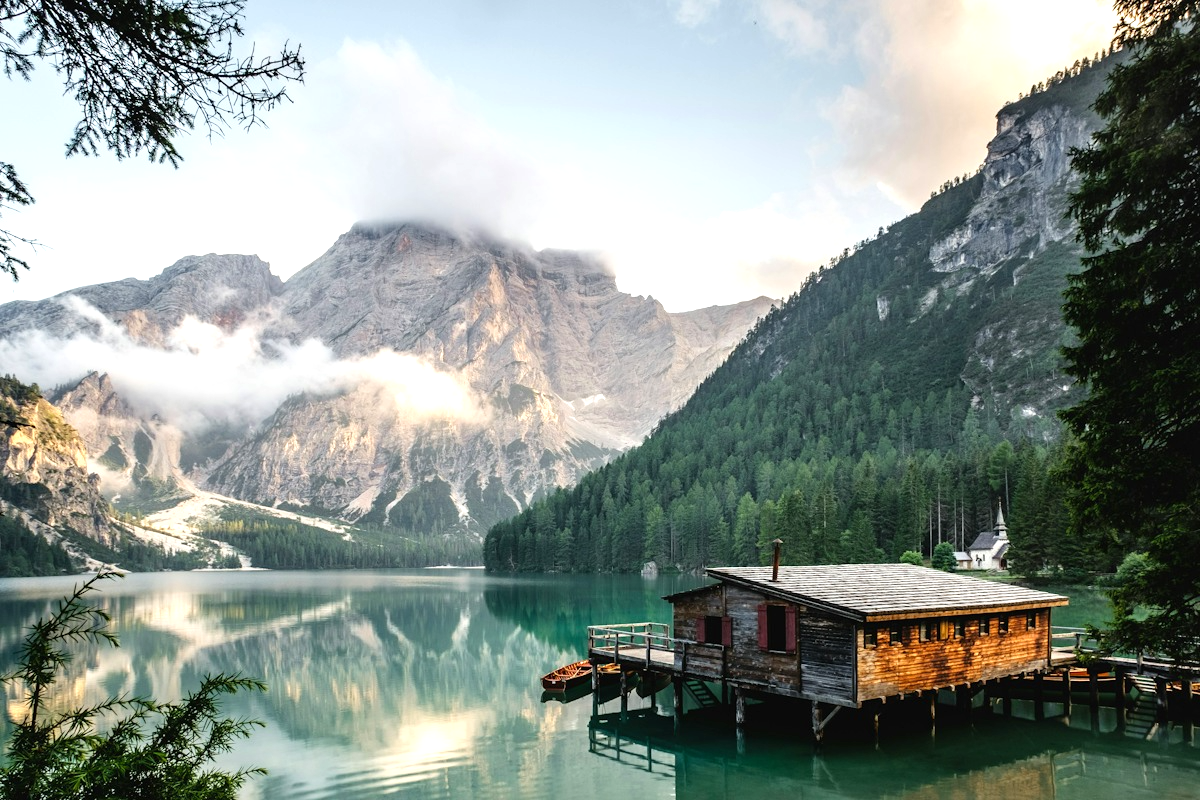
Brightened
Why does a brighter photo look flat?
Raising brightness affects the image broadly. Dark areas become easier to see, but bright areas may become pale and the picture can lose separation between tones. A small adjustment is often easier to judge than moving a slider straight to its maximum.
Use Adjust Image if you need separate controls such as shadows, highlights or contrast. These browser adjustments are useful for a finished image, but they do not provide the original sensor information of a RAW photo.
Can I fix a very dark face?
If the face still has visible detail, a brightness or shadow adjustment may make it clearer. If the face is almost one solid tone, increasing brightness may reveal noise or a flat patch with no recognizable features.
The brighten tool affects the complete picture. It cannot select just the face while protecting everything around it. Check the rest of the photo before deciding whether the result is useful.
How should I export it?
For an ordinary photo, JPG lets you adjust the download quality. Use PNG when avoiding another lossy encoding step matters more than file size. An exported PNG cannot undo artifacts already present in a JPG source.
More questions
Will brightening remove blur?
No. Brightness changes tones, not focus. A blurred source remains blurred.
Can I darken a photo instead?
Use Darken Image for a darker result, or Adjust Image when you need several tonal controls together.